Submitting a Support Ticket
Go to Cullman City Schools HelpDesk in CCS bookmarks
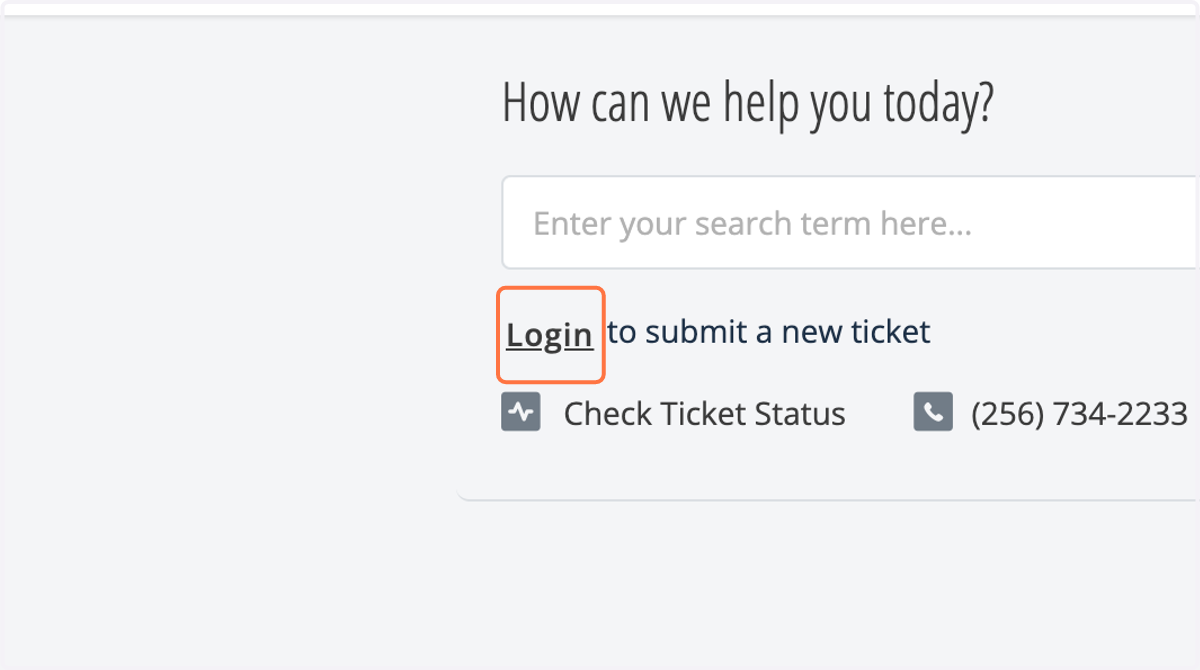
1. Click on Login
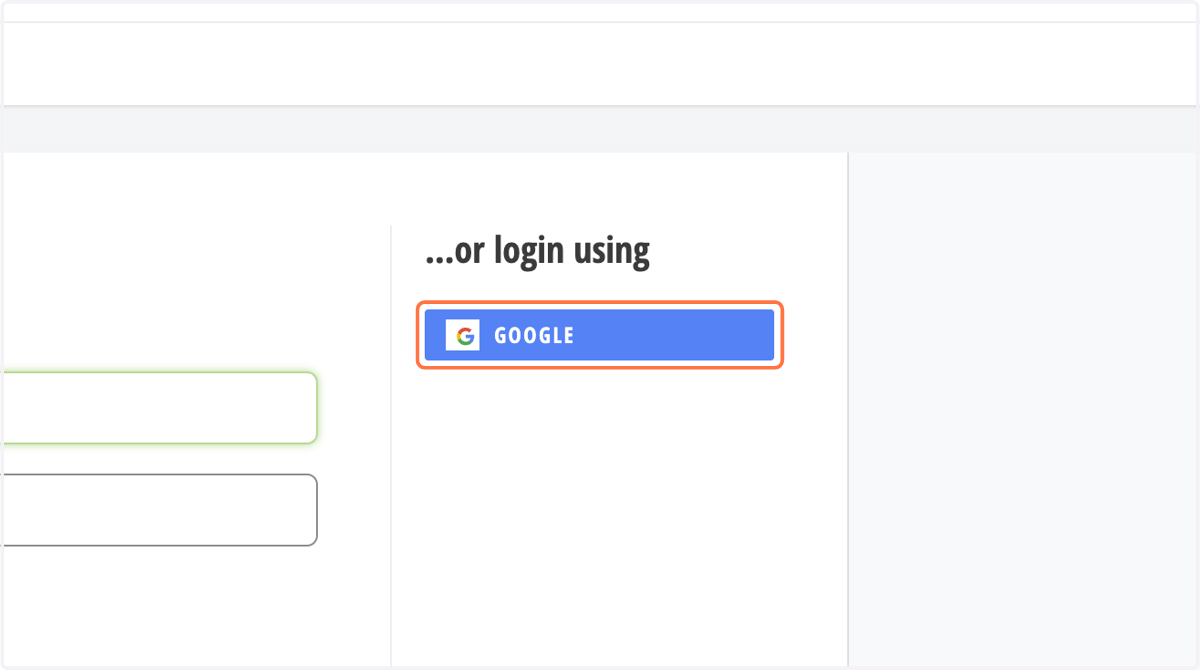
2. Click on GOOGLE
Freshworks
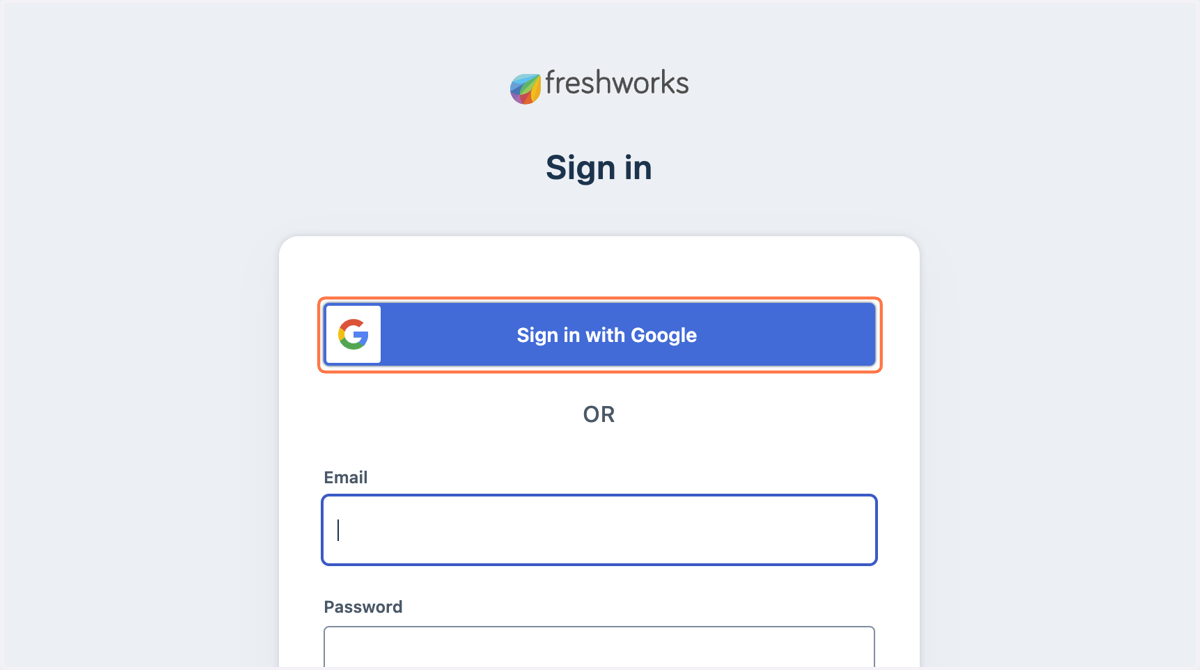
3. Click on Sign in with Google
Sign in - Google Accounts
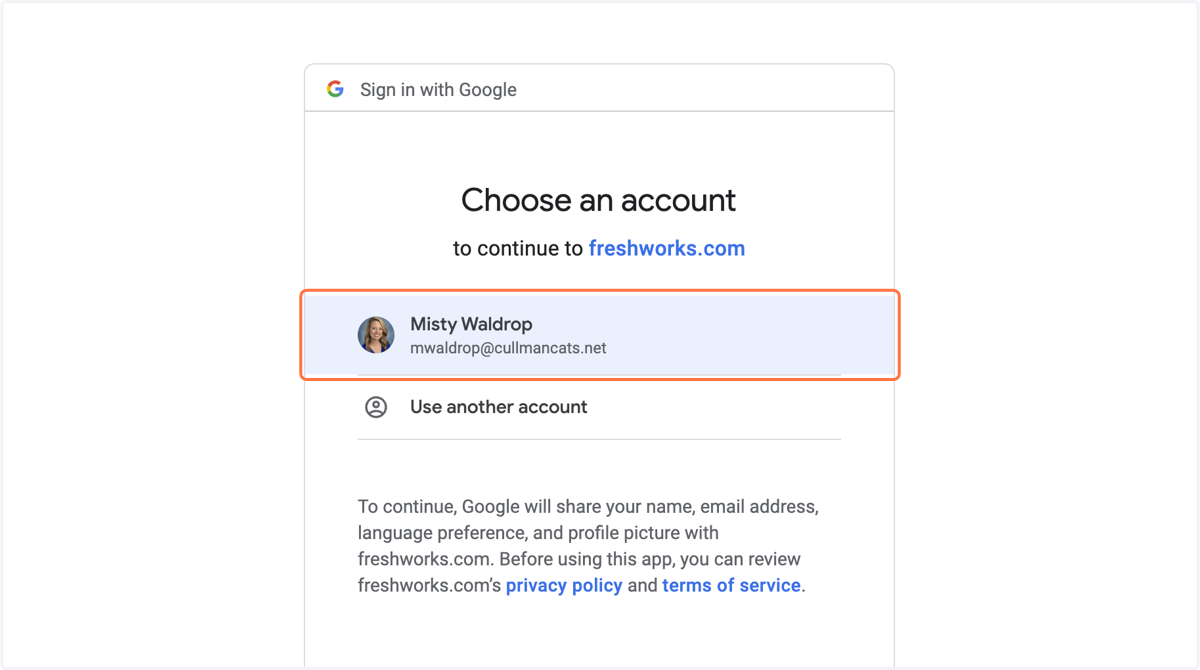
4. Click on Misty Waldrop…
5. Click on New at top right
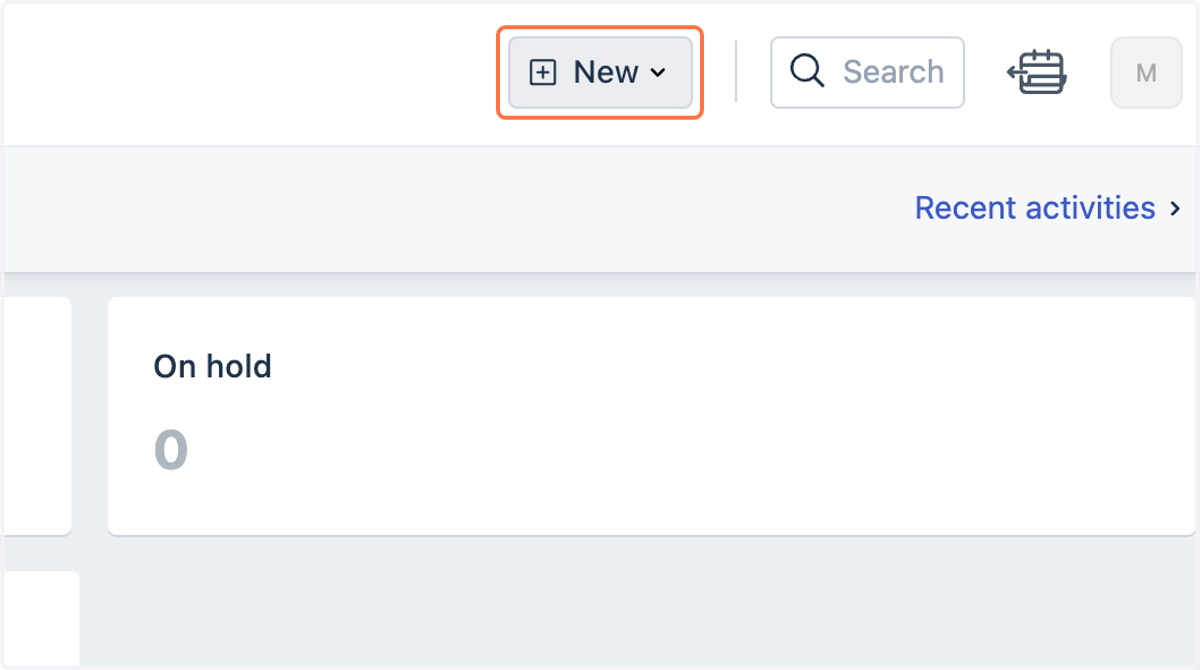
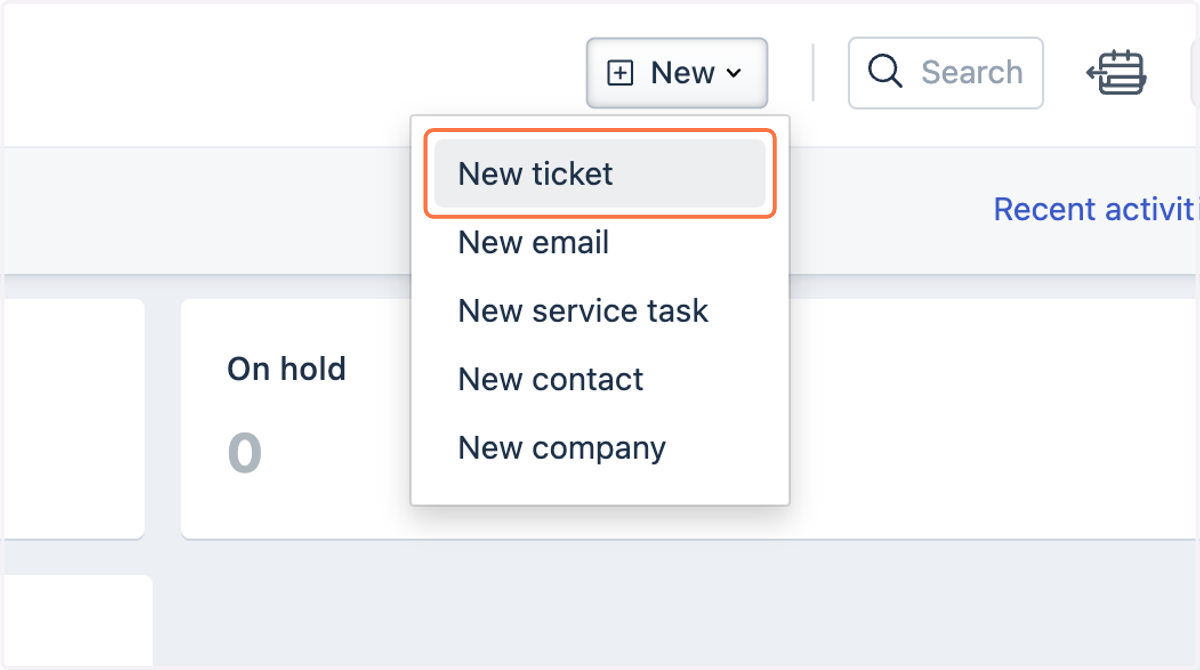
6. Click on New ticket
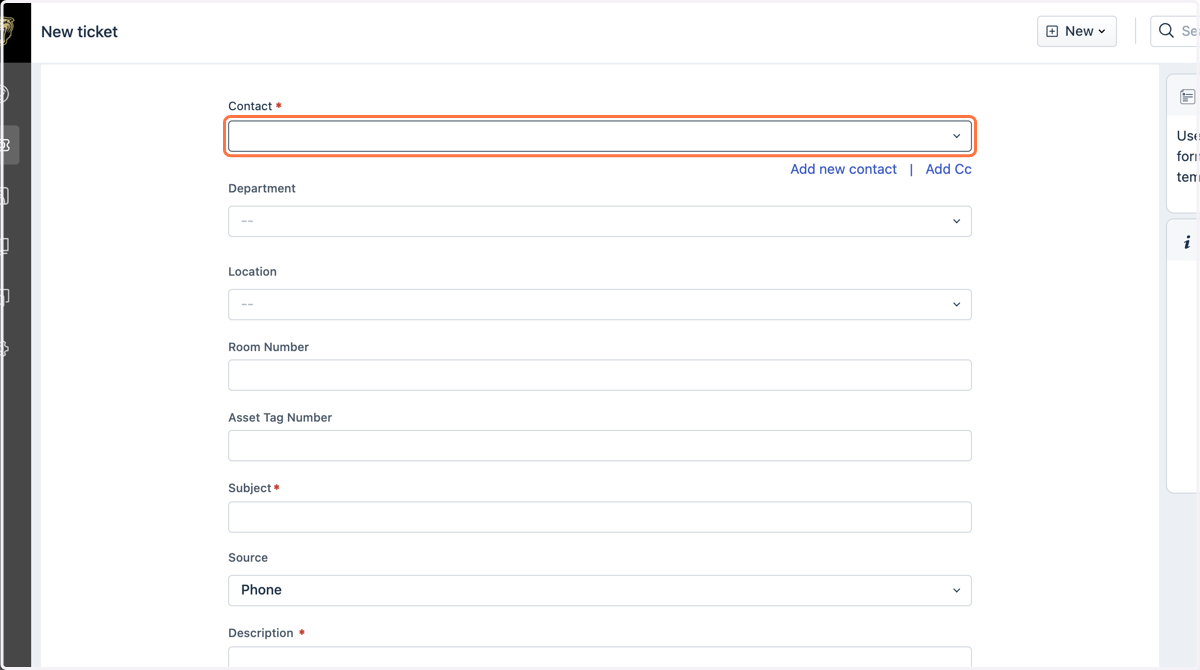
7. Type your information in the contact field.
8. Choose the department you want the ticket to go to.
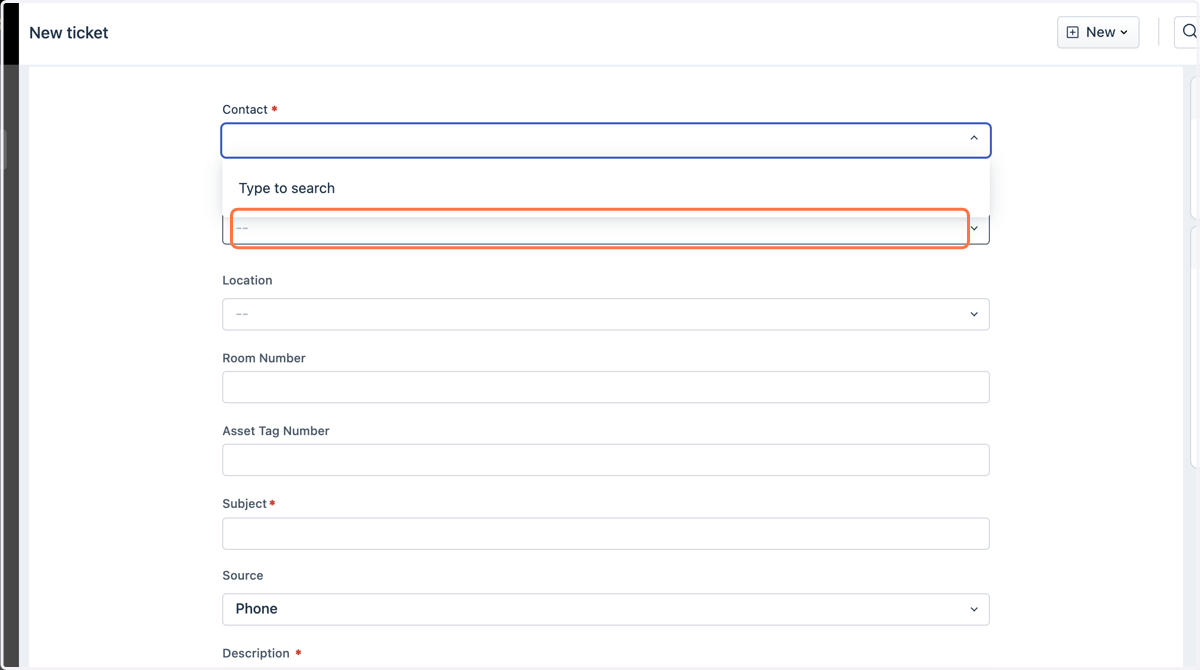
9. Complete area of problem.
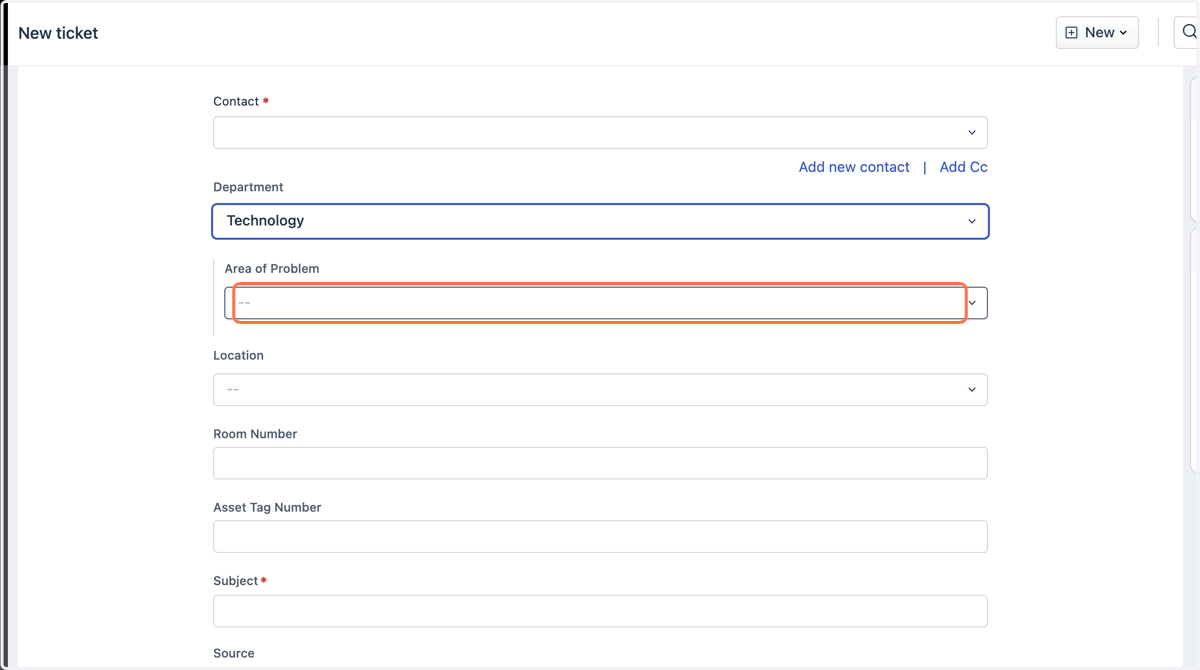
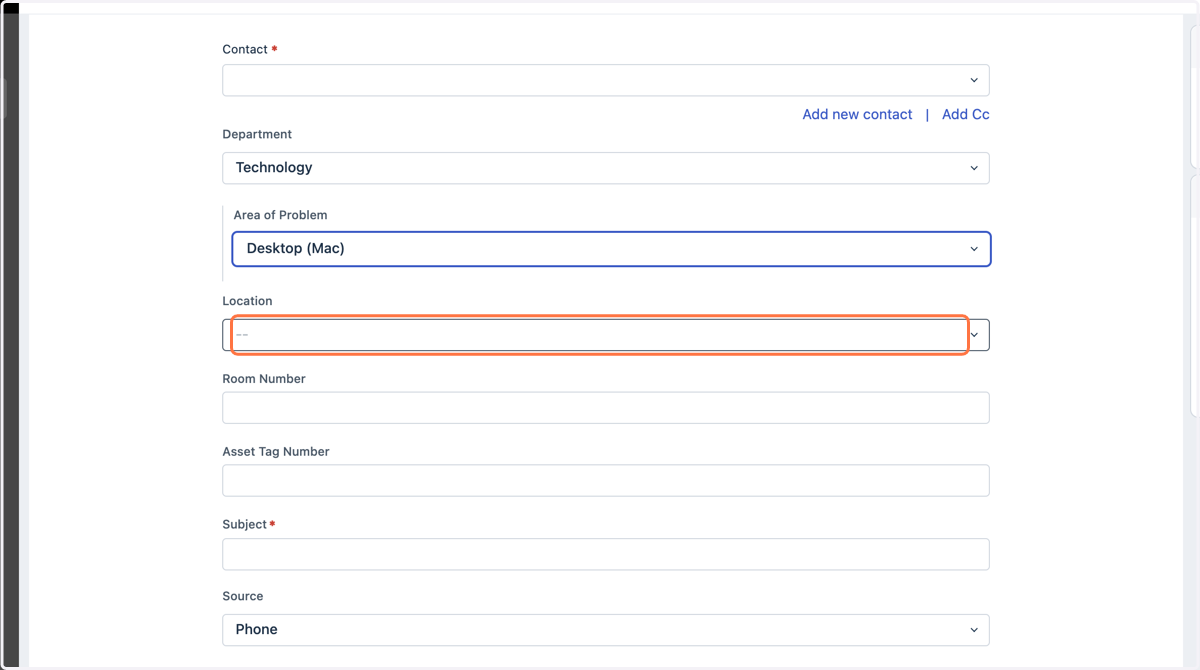
10. Choose your location
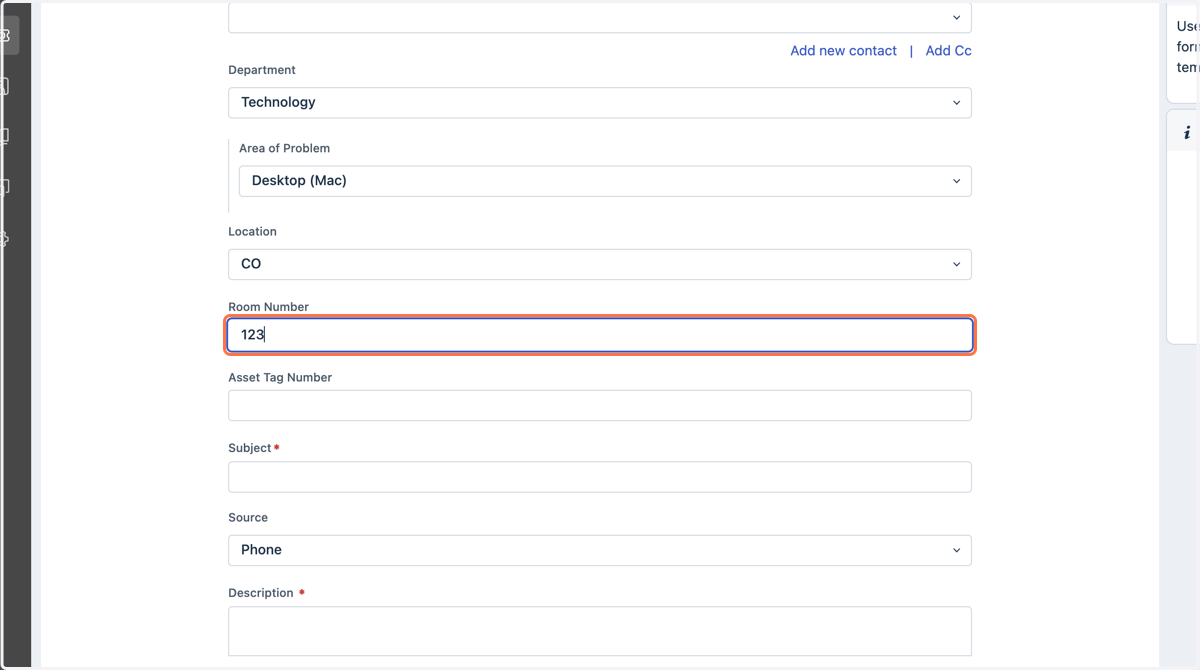
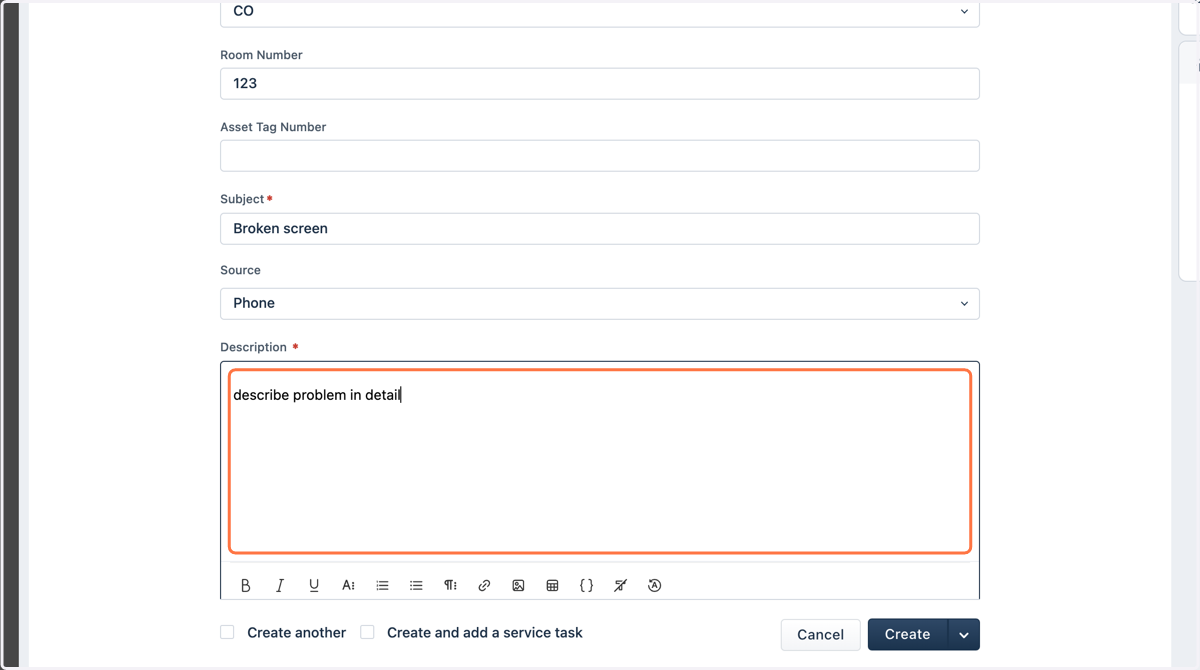
11. Put in your room number
12. Type the subject
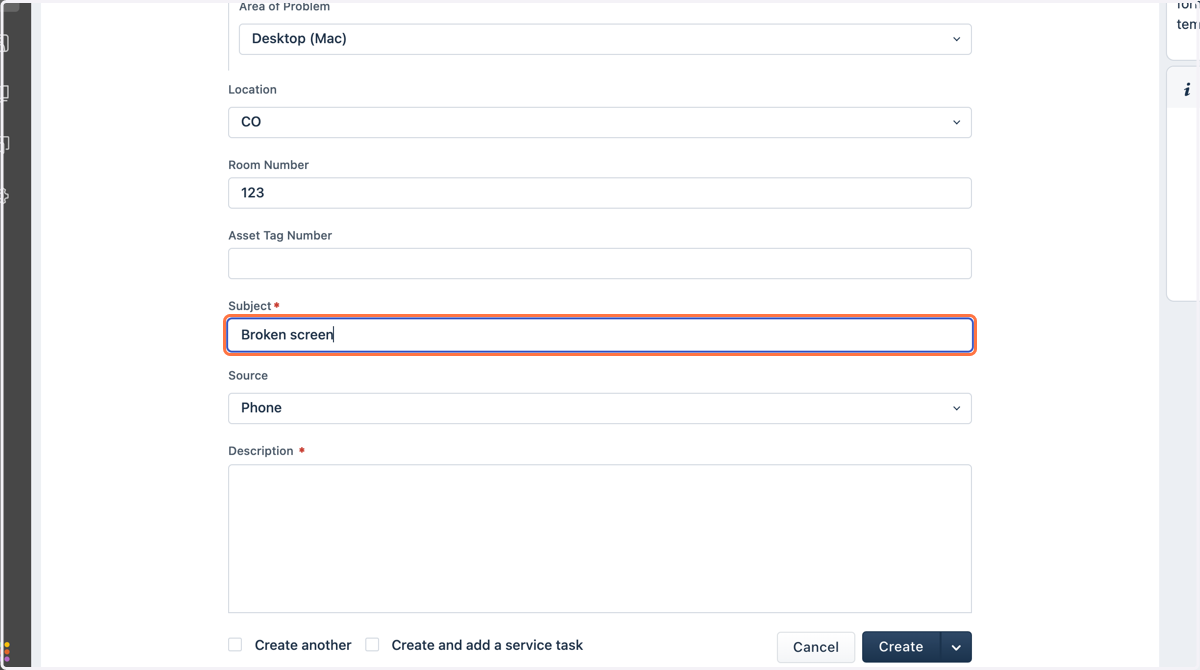
13. Describe the problem in detail
14. Choose the group the ticket goes to
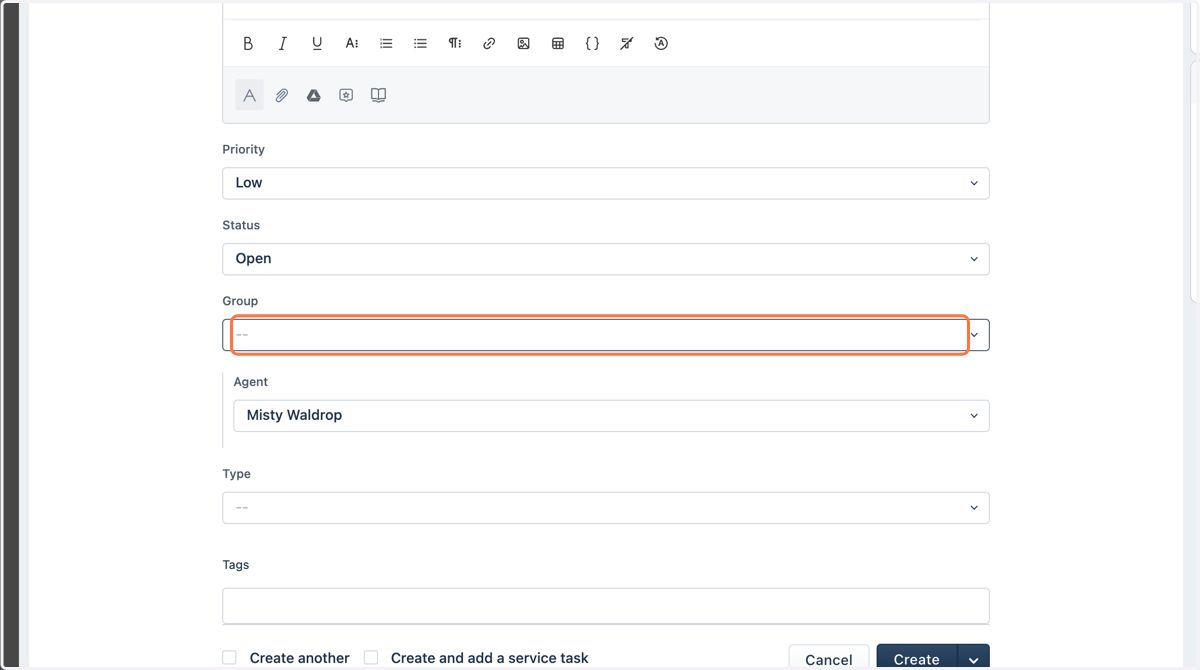
15. Click Create